


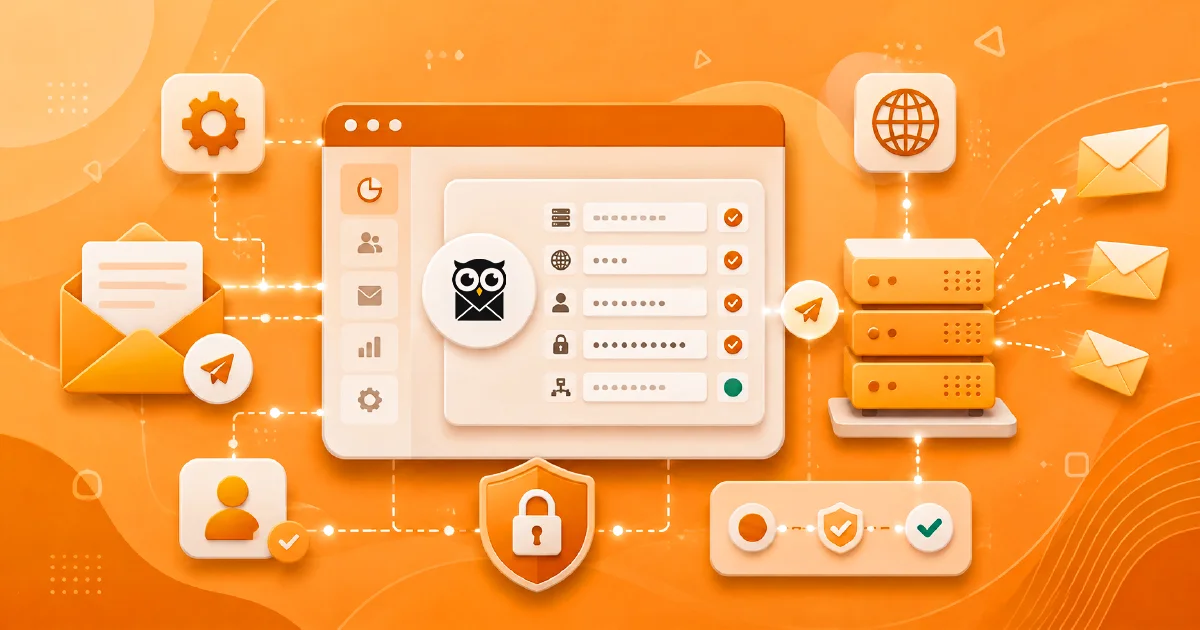
Sooner or later, everyone who starts email marketing runs into a four-letter abbreviation: SMTP. It looks technical and cold at first glance, yet it describes something remarkably simple: how your emails actually reach their recipients. Once you understand it, the fog around email sending clears completely.
We wrote this guide with a single goal: nobody should get stuck because of SMTP. By the end, you will know what SMTP is, where to find your own server and port details, and how to send your first campaign through Keysletter with Gmail, Outlook, Yandex or your business email address.
What Is SMTP?
SMTP stands for Simple Mail Transfer Protocol. Leaving the formal definition aside, its job fits in one sentence: SMTP is the set of rules that carries your email to its recipient.
The easiest analogy is the post office. When you send a letter, you do not walk it to the recipient's door yourself; you hand it to the post office and the postal service takes care of the rest. An SMTP server is the post office of the email world. When you hit send, your email first goes to this server; the server verifies your identity, locates the recipient's mail service and delivers your message.
So why have you never had to deal with something this fundamental before? Because the email app on your phone configures these settings for you during setup. An email marketing platform like Keysletter, however, sends campaigns on your behalf, from your own email address, which is why you need to introduce your post office to the platform once. That is exactly what SMTP settings are, and you only do it once.
How Does SMTP Work?
The journey from the moment you press send to the recipient's inbox has three stops:
You send
When you launch your campaign, Keysletter hands the email over to your SMTP server.
The SMTP server takes over
The server verifies your identity with your username and password, then finds each recipient's mail service and delivers the email.
It lands in the inbox
The recipient's mail service accepts the message and your email takes its place in the inbox.
Your only responsibility in this chain is the first link: giving the platform the correct SMTP details. The rest happens by itself within seconds.
What Information Do You Need for SMTP Settings?
Whatever tool you use, every SMTP form in the world asks for the same four pieces of information. Learn these four once and no SMTP screen will ever look foreign again:
SMTP Server
The address of your post office. It usually looks like smtp.provider.com; for Gmail it is smtp.gmail.com.
Port
Which door you use to reach the server. Two values are common today: 587 for TLS and 465 for SSL.
Username
With most providers this is simply your email address, for example info@yourcompany.com.
Password
Your email account password, or a specially generated app password if your provider requires one.
Who has these four details? Whoever provides your email service. If you use Gmail, it is Google; if you use an address on your own domain, it is your hosting provider. We will walk through each one below.
Port and SSL: 587 or 465?
Do not let the port question confuse you; both are correct. Port 587 works with TLS (STARTTLS) encryption, port 465 with SSL. Both encrypt your connection end to end; the only difference is how the encryption is initiated. Your provider's documentation tells you which one to use; if in doubt, 587 is a safe starting point.
There is also the legacy port 25. Because it was widely abused for spam, most providers block it today; it is not used for campaign sending.
In Keysletter you do not need to worry about this distinction. With the Use SSL switch on, the system picks the right encryption method based on the port you enter: SSL for 465, TLS for 587. Just leave the switch on.
SMTP Details of Popular Providers
Now for the practical part. Below you will find the SMTP details of the most widely used providers, along with the one thing you need to know about each.
Gmail
- Server:
smtp.gmail.com - Port: 587
- Username: Your Gmail address
- Password: An app password (not your regular password)
Your regular Gmail password will not work. Google only allows external applications to connect with an app password. First enable 2-Step Verification in your Google Account, then find the "App passwords" page by typing it into the search bar of your Google Account and generate a 16-character password for Keysletter. Enter that 16-character password in the SMTP Password field.
Outlook / Microsoft 365
- Server:
smtp.office365.com - Port: 587
- Username: Your email address
- Password: Your account password
These settings are for business Microsoft 365 accounts. On business accounts, sending via SMTP (SMTP AUTH) may be disabled by the administrator; if your details are correct but the connection fails, ask your IT administrator to enable it for your account. One important note: free @outlook.com and @hotmail.com addresses no longer support password-based SMTP sending due to Microsoft's security policy. If you use a personal Microsoft address, prefer Gmail, Yandex or an address on your own domain for your campaigns.
Yandex
- Server:
smtp.yandex.com - Port: 465
- Username: Your Yandex address
- Password: An app password
Yandex also asks you to create an app password for mail applications instead of your account password. You can generate one from your Yandex ID security settings in seconds.
Business Email (Your Own Domain)
If you use an address on your own domain, such as info@yourcompany.com, your best source is your hosting provider. The common pattern is: server mail.yourdomain.com, port 465, username your full email address, password your mailbox password. If you use cPanel, the device connection settings section of the Email Accounts page lists all of these details. If you cannot find them, simply ask your provider's support for your SMTP details; it is one of the most common questions they receive.
For brand trust and long-term deliverability, the healthiest choice is to send campaigns from an address on your own domain. Free mailbox addresses are fine for small lists and testing; plan to move to a business address as your list grows.
Configure Your SMTP Settings in Keysletter, Step by Step
Once your details are ready, the rest takes two minutes:
- Log in to your Keysletter panel and open the Company Settings page from the left menu. The SMTP Settings tab opens by default.
- If you use Gmail, Outlook or Yandex, click one of the ready-made provider buttons on the form; the server, port and SSL fields fill in automatically. All that is left is your username and password.
- SMTP Server: Your provider's server address, for example
smtp.gmail.com. - Port: 587 or 465.
- SMTP Username: Your email address. One important detail: this address also becomes the sender address of your campaigns; your subscribers will see your emails coming from it.
- SMTP Password: Your account password or app password.
- Use SSL: Leave it on; most providers require an encrypted connection.
- Also review the Company Name field on the same page; it appears as the sender name in the inbox.
- Press Save Settings. That is all.
As a result, your subscribers see your emails in the sender line like this: your company name first, your email address next to it. A familiar sender name with a consistent address is the quiet hero of your open rate.
Test Your Settings
At the top of the SMTP Settings section you will find the Send Test Email panel. Type your own address and press Send; the system sends a real test email using whatever is currently in the form, even before you save. If you see the success message in the panel and the test email confirming the connection in your inbox, your setup is complete.
Always send a test email before your first campaign. Catching a problem during a single test is far better than discovering it while sending to hundreds of subscribers.
Common Errors and How to Fix Them
If you run into a connection error, do not panic; the cause is almost always on this short list:
- Wrong type of password: With Gmail and Yandex, the most common mistake is entering the regular account password instead of an app password. Generate an app password and use that.
- A typo in the server address: Copy the address from your provider's page or use the ready-made provider buttons instead of typing it by hand.
- Port and encryption mismatch: Keep the Use SSL switch on; the system picks the right method for the port automatically.
- SMTP disabled in Microsoft 365: On business accounts this permission may be off by default; ask your administrator to enable it.
- A recent password change: Changing your account password can invalidate existing app passwords; generate a new one and update it in Keysletter.
- Provider restrictions: Some hosting plans require SMTP access to be enabled separately. If nothing else works, ask your provider whether SMTP access is active for your account.
Security Dos and Don'ts
Do
- Use an app password wherever your provider supports it, so your real password never circulates.
- Verify the connection with a test email before sending.
- Prefer an address on your own domain for campaigns.
- Update the saved password in Keysletter whenever you change it.
Don't
- Never share your SMTP password by email or message.
- Do not push personal free accounts to send to very large lists; you will hit daily limits.
- Do not use port 25.
- Do not launch a big campaign without testing your settings first.
On Keysletter's side your password is in safe hands too: your SMTP password is stored encrypted with AES-256, never kept in plain text, and never displayed in the form again after saving.
Can You Send Campaigns Without SMTP?
No, and that is a deliberate design choice. Keysletter sends your campaigns from your own address, through your own SMTP server. This keeps the sender identity entirely yours: emails leave from your address, replies come straight back to you, and your sender reputation stays in your own hands. If you try to send a campaign before completing your SMTP settings, the system gently warns you and takes you to the settings page with one click; after a two-minute setup you continue right where you left off.
Frequently Asked Questions
Do I need technical knowledge to configure SMTP?
No. You only need to enter four pieces of information in the right fields: server, port, username and password. For Gmail, Outlook and Yandex, the ready-made buttons do most of the work for you.
What is an app password and why do I need one?
An app password is a single-purpose password that providers like Google and Yandex generate for external applications. It lets you connect securely without sharing your real account password, and it takes seconds to create in your account's security settings.
What is the difference between port 587 and 465?
Both are secure; 587 uses TLS and 465 uses SSL encryption. Use whichever your provider recommends. With the Use SSL switch on, Keysletter automatically picks the right method for the port.
Can I send campaigns with my Gmail address?
Yes; it takes a few minutes with smtp.gmail.com, port 587 and an app password. Keep in mind that free accounts have daily sending limits; as your list grows, a business address on your own domain is healthier for both limits and brand trust.
Is my SMTP password safe in Keysletter?
Yes. Your password is stored encrypted with AES-256, never kept in plain text, and never shown in the form again after saving. You can change or reset it at any time.
Can I use Keysletter before setting up SMTP?
Yes; you can create your account, build your lists and prepare your templates. You only need to complete the SMTP setup to send campaigns, and with this guide that takes just a few minutes.
In Summary
SMTP may look like a technical hurdle, but its essence fits in three sentences: it is the post office that carries your email, it is configured with four pieces of information, and you set it up only once. Get your details from your provider, enter them on the Company Settings page, send a test email; Keysletter handles the rest.
What is next? See our first campaign guide to build your first send from start to finish, or "What Is Email Marketing?" for the big picture.